Set it up once, then leave it running.
Start here after you pay. The license key arrives in Polar’s email and in the customer portal linked from that receipt. These pictures use demonstration calendar names. Under each screen, open the controls that appear there.
Download the PDF of this same guide.
Download the installer.
The installer is a public file on this site, with its SHA-256 beside the link. The download page says when that file is published. It is a per-user install for 64-bit Windows 10 or Windows 11. The first launch may ask Windows to install Microsoft’s WebView2 runtime. That component keeps Avenclave’s own Outlook sessions. It does not change the browser you already use.
If Windows warns you.
A new signed download can still show “Windows protected your PC” until that file has a reputation. The publisher on that prompt is a person’s legal name. Choose More info, then Run anyway. The picture of that prompt is added here when the signed installer is the one being published.
Save the license key, then set how far and how often it looks.
Open Configuration. The top of that window is the license. The next section is Sync. Both are on this screen.
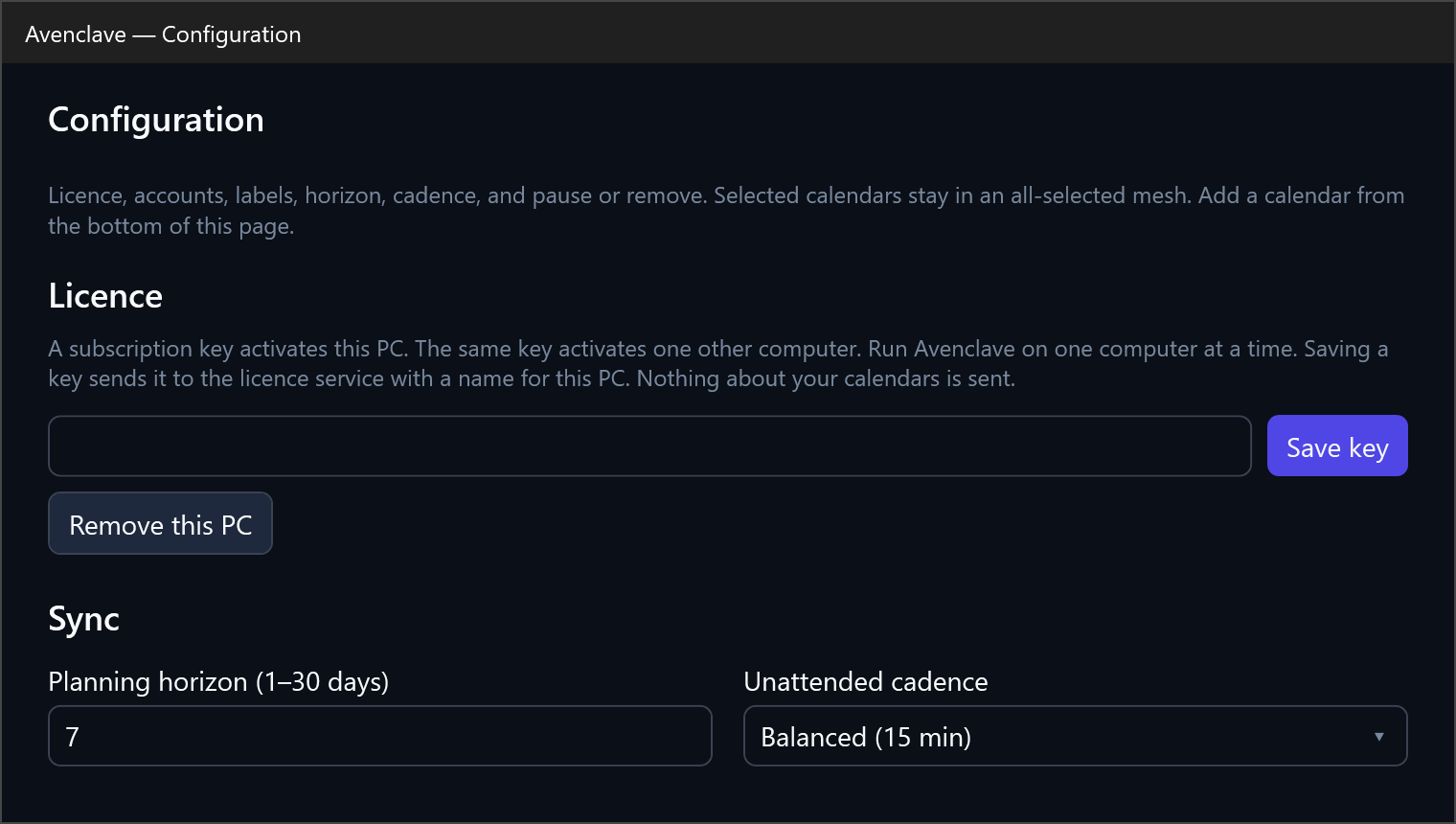
Licence and Sync
Save key
Paste the subscription key and choose Save key. That sends the key and a name for this PC to the license service. Nothing about your calendars is sent. One subscription activates two computers. Run Avenclave on one of them. The second activation is there so you can move to another computer, or replace one, without losing the subscription.
Remove this PC
This releases the activation on this computer so the same key can be saved on another one. The data folder on this PC stays. Blocks already written on the calendars stay until a running copy removes them. Uninstall releases the seat when it can reach the license service.
Planning horizon (1–30 days)
How far ahead Avenclave reads busy time and writes placeholders. A new install uses 7. A number below 1 is saved as 1, and a number above 30 is saved as 30. The main window shows the number you saved. Avenclave does not look past that window.
Unattended cadence
How often Avenclave checks on its own while it is running and the computer is awake. Nothing runs while the computer is asleep or shut down.
- Faster (~5 min).
- Balanced (15 min). A new install uses this.
- Relaxed (~60 min).
Run sync, on the main window, is a check you start yourself. It does not change this interval.
Add each calendar.
At the bottom of Configuration, choose Add calendar. Two calendars are enough to start. Avenclave can connect up to 12. Each Microsoft account has to open Outlook on the web. Avenclave does not read the Outlook desktop app.
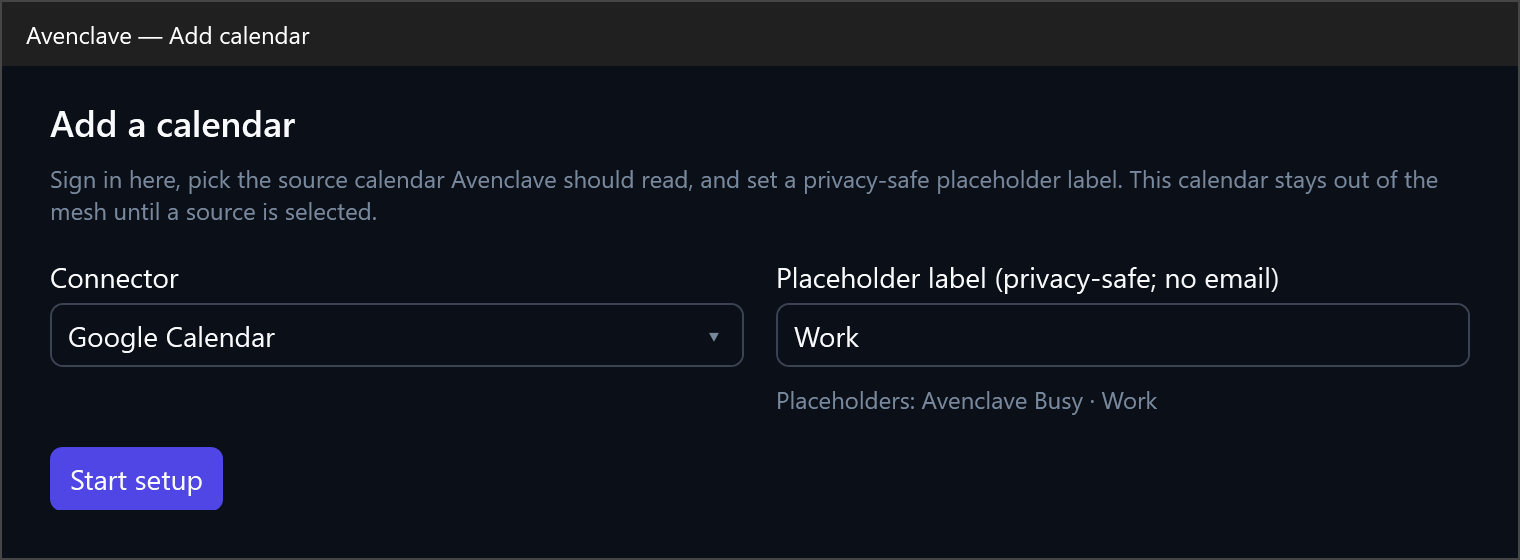
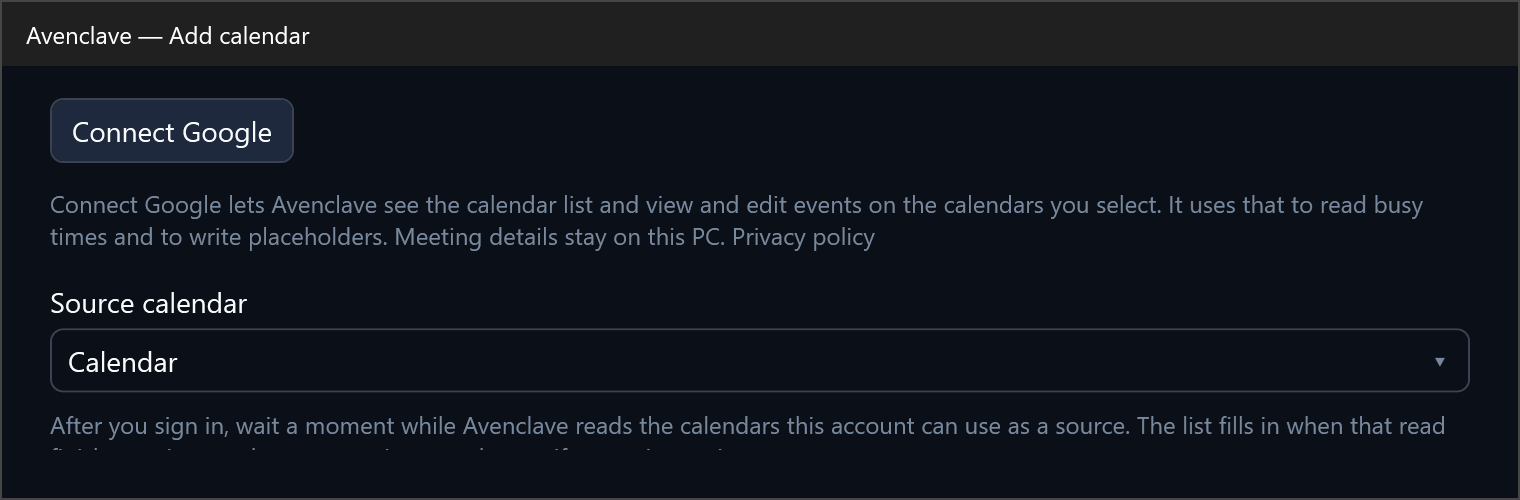
Controls on Add a calendar
Connector
Outlook Web or Google Calendar. Outlook signs in inside Avenclave. Google signs in in your browser. The connector is chosen here. To switch later, remove the calendar and add it again.
Placeholder label (privacy-safe; no email)
A short name with no email address. Other calendars show a block titled “Avenclave Busy · ” plus that label. A label containing @ is ignored. You can change this later on the calendar’s card in Configuration.
Start setup
Creates this calendar slot and opens sign-in. Outlook uses a pane in Avenclave. Google opens your browser.
Connect Google
Opens Google’s consent screen. Avenclave can see the calendar list and view and edit events on the calendars you select. It uses that to read busy times and to write placeholders. Meeting details stay on this PC. Until Google finishes its review, that screen can say the app is not verified. A personal Gmail account can continue. A Google Workspace administrator can block the app until the review finishes or the administrator allows it.
Source calendar
The calendar Avenclave reads as busy time. The list fills in after sign-in. That can take up to a minute, or longer if a sync is already running. Calendars you do not pick stay excluded. This calendar stays out of the mesh until a source is selected.
Done
Keeps the calendar and returns to Configuration. It joins the mesh on the next Run sync, and only after a source is selected.
Cancel
Leaves without finishing. A calendar that was added with no source selected is removed.
Adjust a calendar you already added.
Each calendar on Configuration has its label on the card. More settings always includes the source calendar. Tentative handling and pause appear once a source is selected. Remove calendar appears for a calendar you added, including one with no source yet. The Google write choice appears only on a Google calendar.
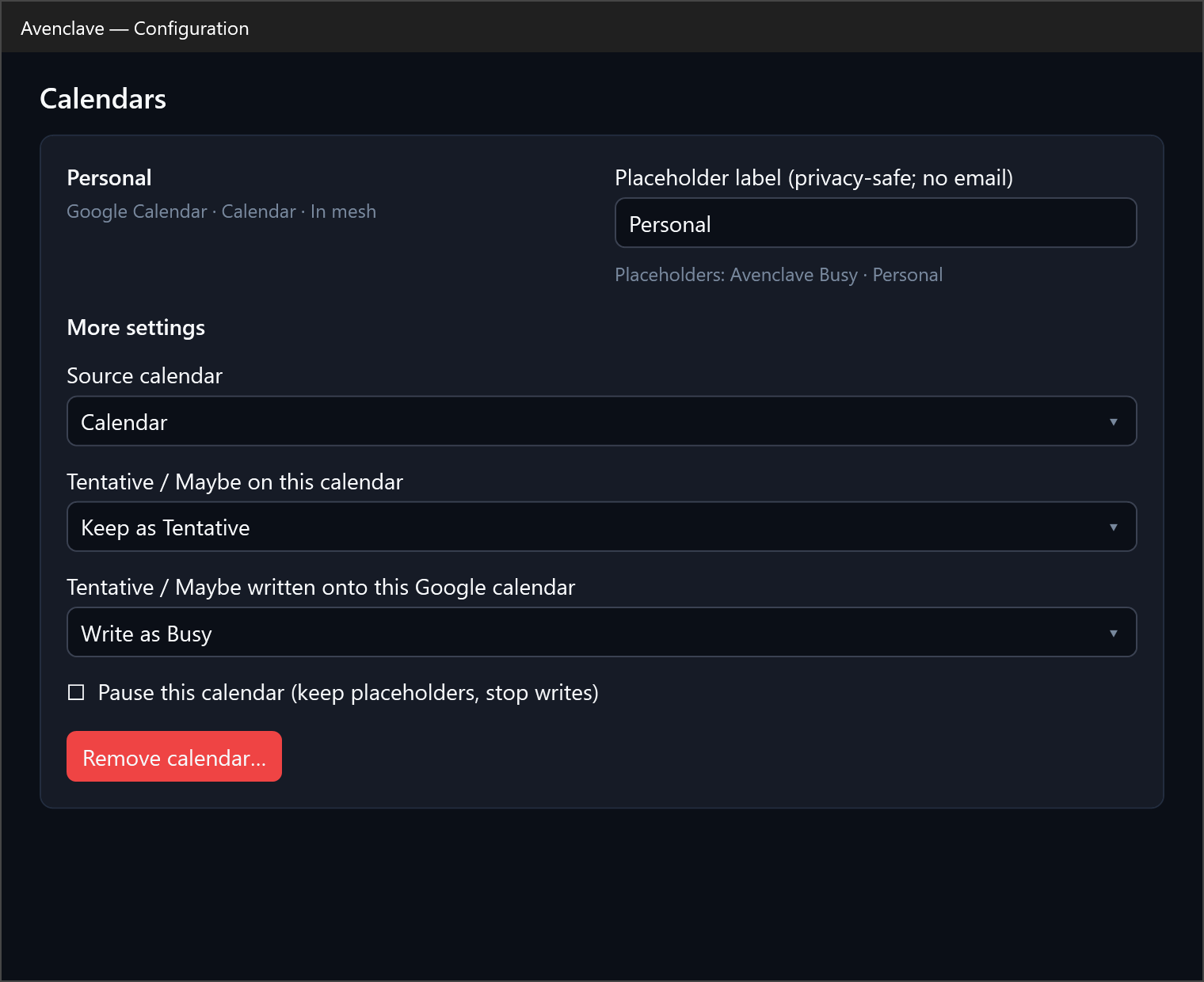
Settings on each calendar
Placeholder label (privacy-safe; no email)
The same label you set while adding the calendar. Changing it changes the title of later placeholders, shown as “Avenclave Busy · ” plus the label. A label containing @ is ignored.
Source calendar
The calendar Avenclave reads. Changing it points this slot at a different calendar on the same account. Newly found calendars stay excluded until you pick one. The line under the calendar’s name says whether it is in the mesh or paused.
Tentative / Maybe on this calendar
How the other calendars treat a Tentative or Maybe event on this one. This is the source side. It is separate from the choice about writing onto a Google calendar.
- Keep as Tentative. The default. The other calendar gets a Tentative block when that calendar can show Tentative. Outlook can.
- Ignore (don't block others). That Tentative time does not block the other calendars.
- Treat as Busy. The other calendars get a Busy block for that time.
Tentative / Maybe written onto this Google calendar
This appears only on a Google calendar. Google cannot show Tentative as its own kind of availability, so this chooses what happens when another calendar’s Tentative time is written here.
- Write as Busy. The default. The time still blocks on Google, and the block is Busy.
- Don't write placeholders. Google does not get a block for that Tentative time.
Free and Working Elsewhere are not copied onto other calendars. There is no control for them.
Pause this calendar (keep placeholders, stop writes)
Existing placeholders stay. Avenclave stops new writes for this calendar until you clear the box. The card then says Paused.
Remove calendar…
Asks you to confirm. Avenclave deletes the placeholders it can still reach, including leftover setup blocks, and lists anything it could not remove. The calendar then leaves this page.
Leave the main window on Calendars protected.
The main window lists the calendars you connected. Calendars protected means every enabled calendar is current. The bold name is the label you chose. Protected on a card means that calendar is signed in, not paused, and ready. A card can also say Sign in, Wrong account, Paused, Connecting, or Empty slot. Closing the window does not quit. It hides Avenclave in the notification area, and the Outlook sessions keep running.
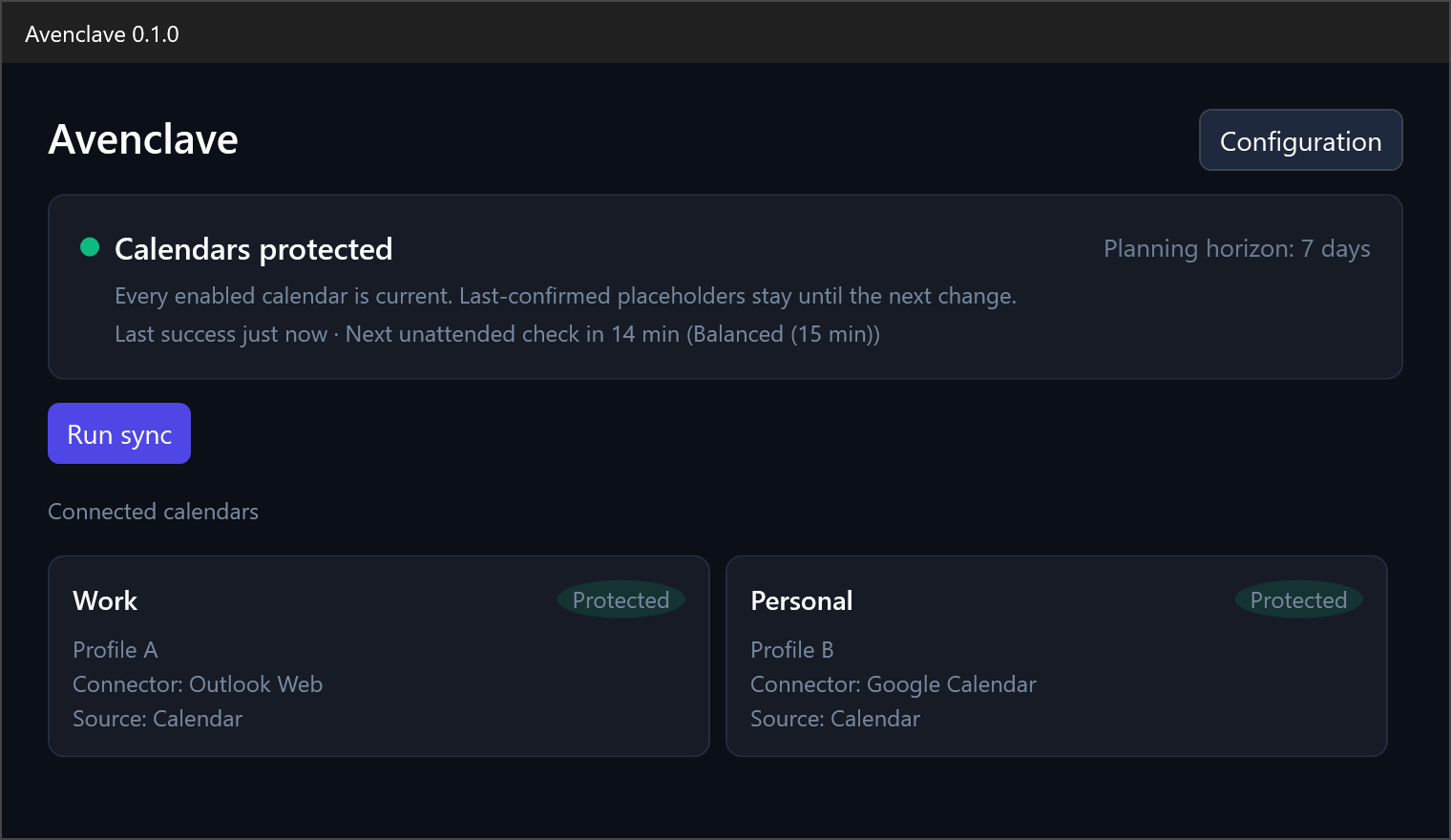
Run sync
Run sync
Starts one pass now. It does not change Planning horizon or Unattended cadence. After that, Avenclave uses the cadence you saved, while the computer is awake.
Quit from the notification area.
Right-click the Avenclave icon. Closing or minimizing the window only hides it.
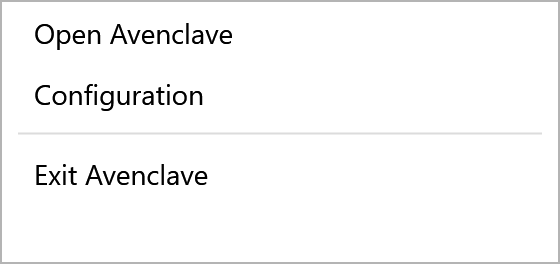
Notification-area menu
Open Avenclave
Brings the main window back.
Configuration
Opens the same Configuration window as the button on the main window.
Exit Avenclave
Quits. The automatic checks stop until you start Avenclave again.
Checkout opens from the subscription page once the installer is published. Until then there is nothing to buy.